> ## Documentation Index
> Fetch the complete documentation index at: https://bloxnshop.mintlify.site/llms.txt
> Use this file to discover all available pages before exploring further.
# 5.1 | Instructions for Cashier Duty
> These instructions are suitable for all staff members at any rank.
## Instructions for using the Manual Checkout Machine
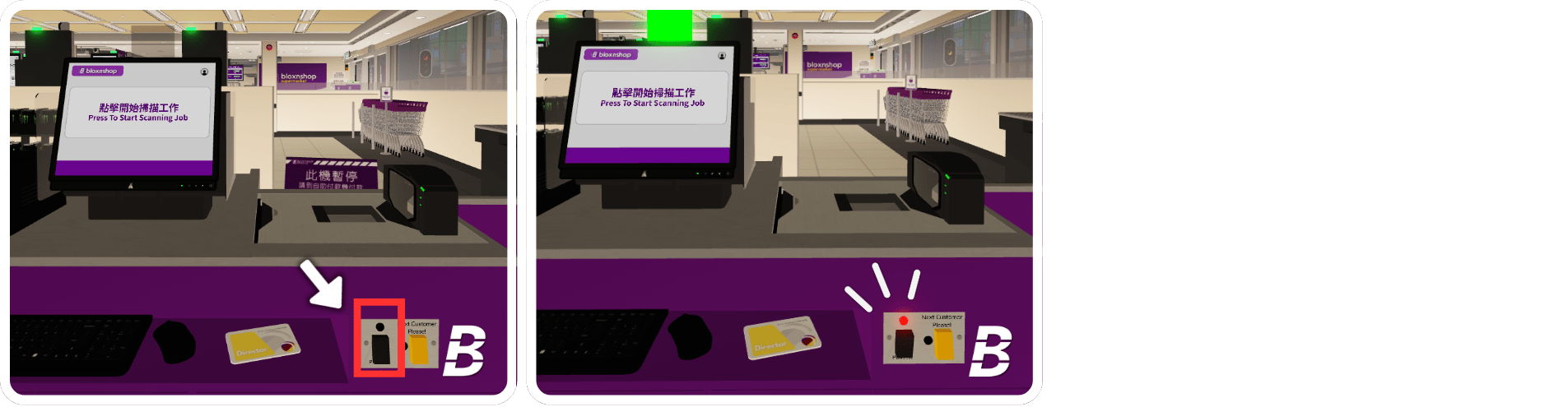
Inside the tills, locate a grey panel with 2 buttons.
Press the **Power** dark button to activate the till; the LED light will turn red, and the lane light will turn green.
The **Lane Close** sign will automatically be removed once powered on.
(Note: If you want to serve the next customer, press the **Next Customer Please!** yellow button and the light will be made.)
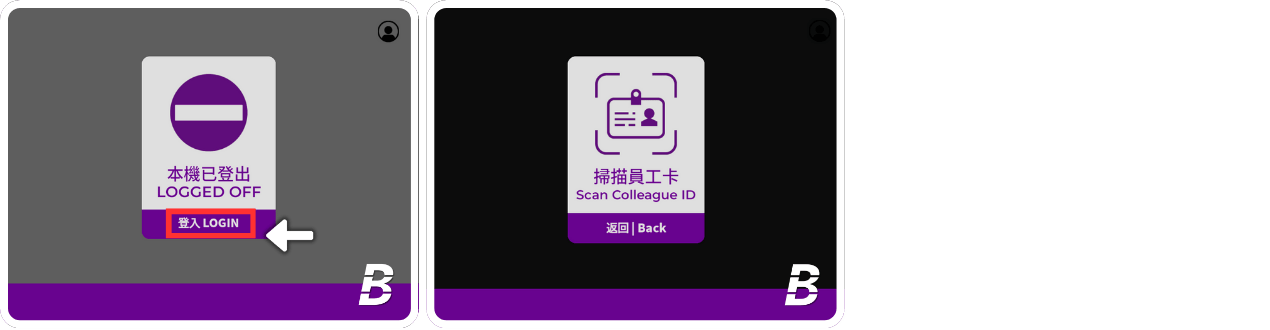
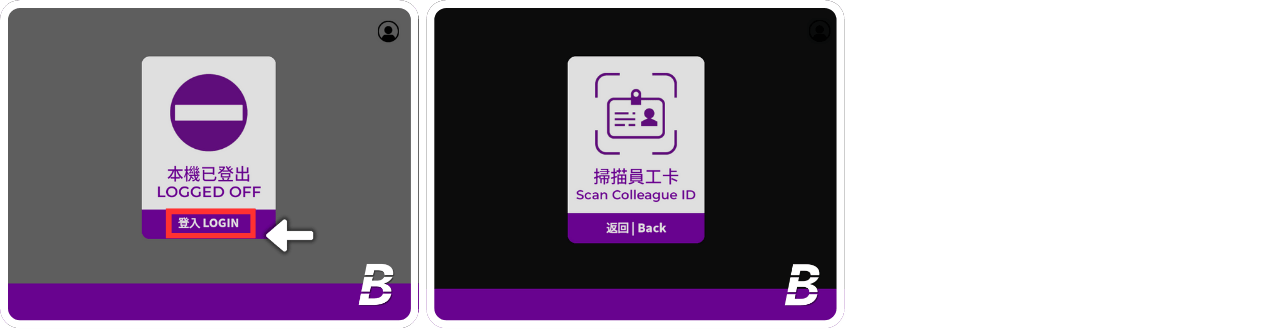
 When the Manual Checkout Machine is logged off, please press **Store Login**, then scan your **Operator Barcode**.
 Here is the main screen of the Manual Payment Machine. You should instruct the customer to scan their products.
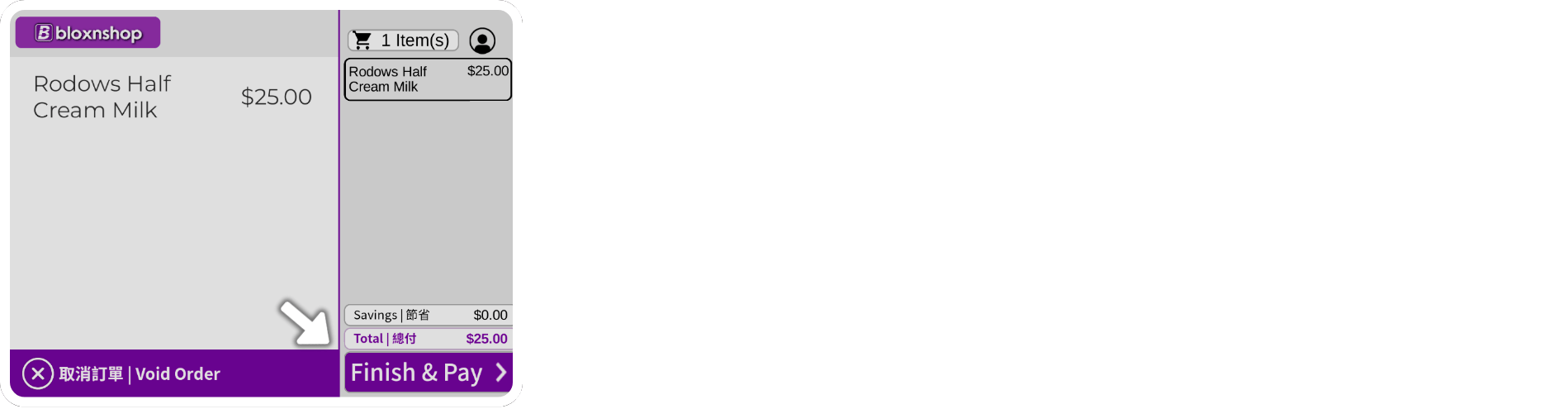
 Once the items are scanned, the screen will display the item names. After finishing the scanning process, press **Finish & Pay**.
To void the customer's transaction, press **Void Order** and click **Yes**.
Once the items are scanned, the screen will display the item names. After finishing the scanning process, press **Finish & Pay**.
To void the customer's transaction, press **Void Order** and click **Yes**.
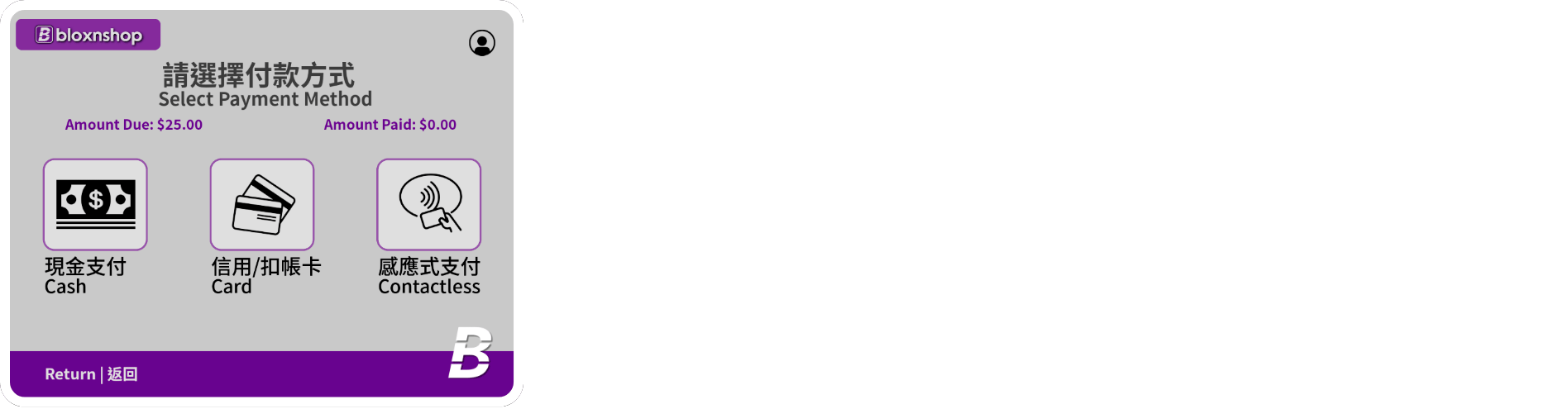
 You should instruct the customer to choose the payment options and complete the process.
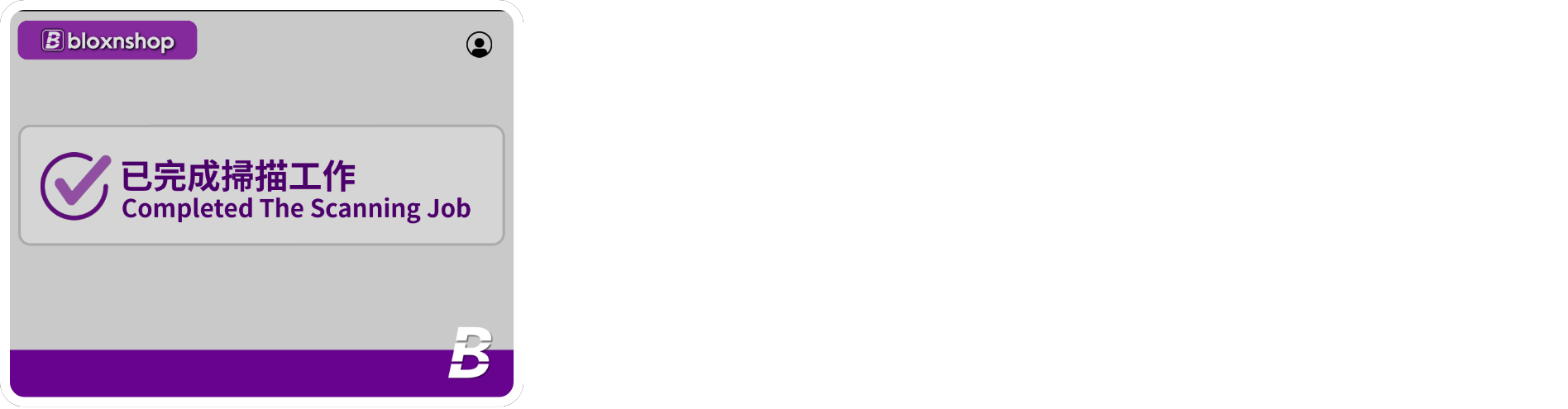
 Once payment is successful, the screen will show **Completed The Scanning Job**. The receipt will be automatically printed for customers. You should bid farewell to the customer after completing the payment process.
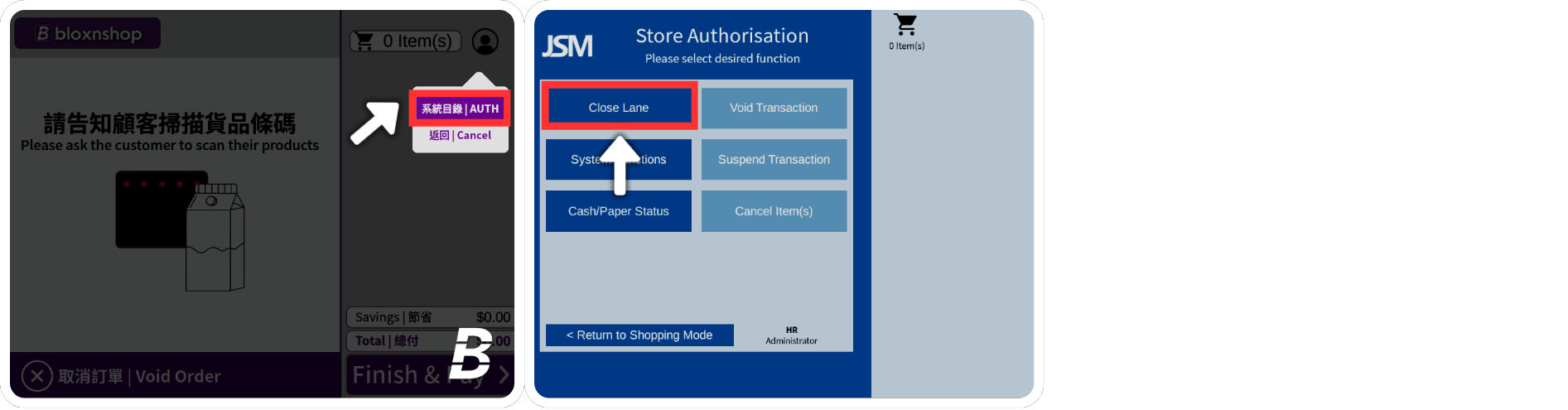
 After finishing your duty, please log off the manual checkout machine and close the tills. Press **AUTH**, scan your operator barcode, and then press **Close Lane**.
 ***
## Instructions for Voiding an Order at the Self-Service Checkout
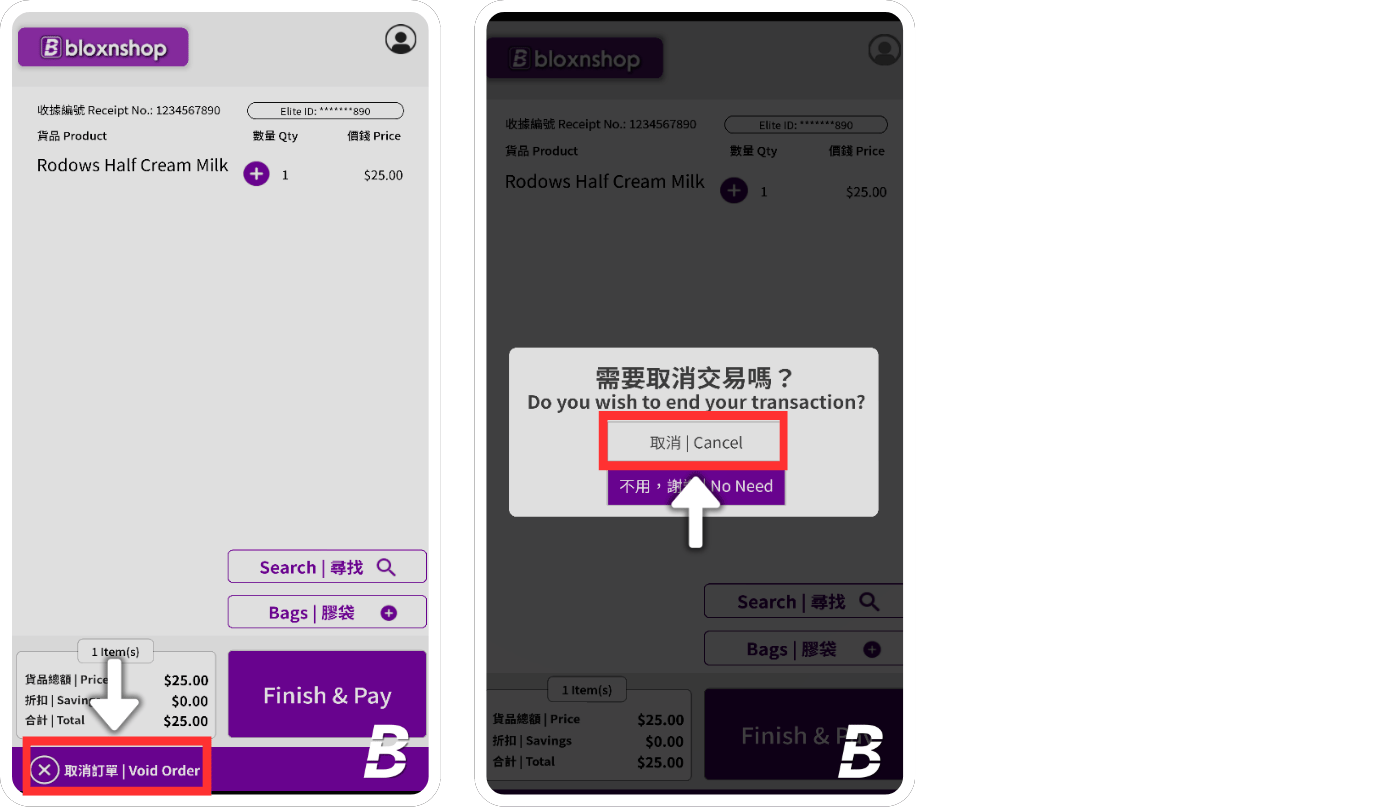
When the customer requests to clear all items / No one is operating the Self-Service Checkouts, press the **Void Order** button.
***
## Instructions for Voiding an Order at the Self-Service Checkout
When the customer requests to clear all items / No one is operating the Self-Service Checkouts, press the **Void Order** button.
 ***
## Instructions for Responding to the Monitoring System
If the EAS Security Gate’s bell rings, it indicates that an item has been **stolen**. To respond to the monitoring system, press the “Respond” button on the keypad.
***
## Instructions for Responding to the Monitoring System
If the EAS Security Gate’s bell rings, it indicates that an item has been **stolen**. To respond to the monitoring system, press the “Respond” button on the keypad.
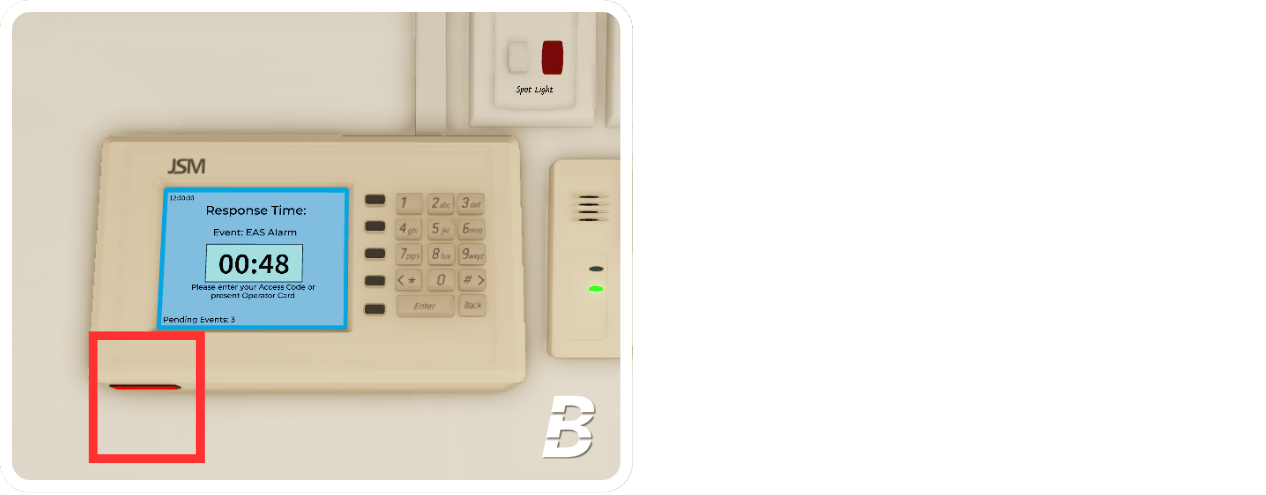
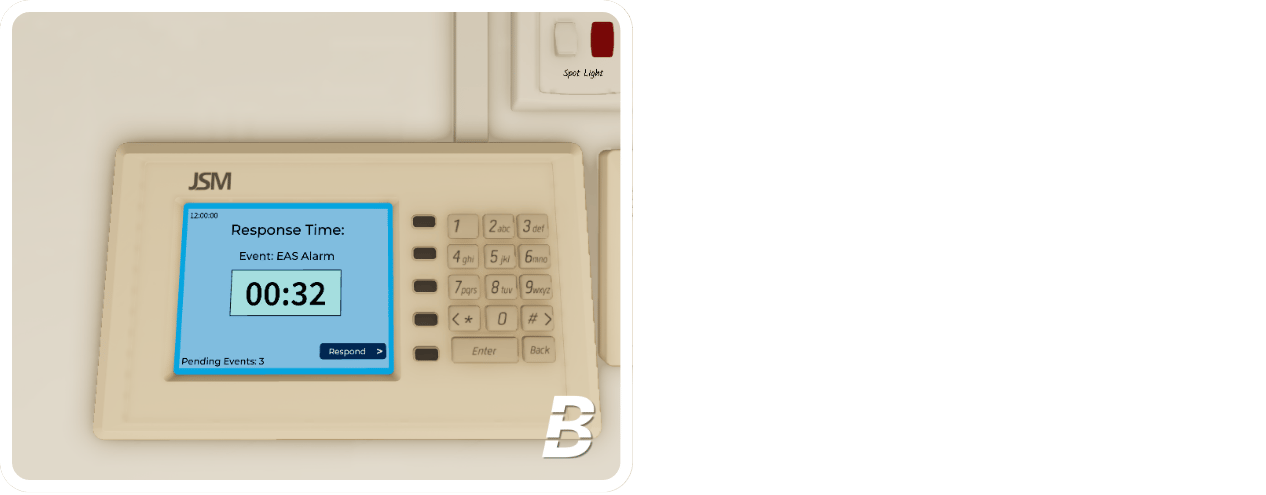 Scan your operator barcode located in the bottom left corner of the monitoring pad.
 Select the Reason Code on the keypad.
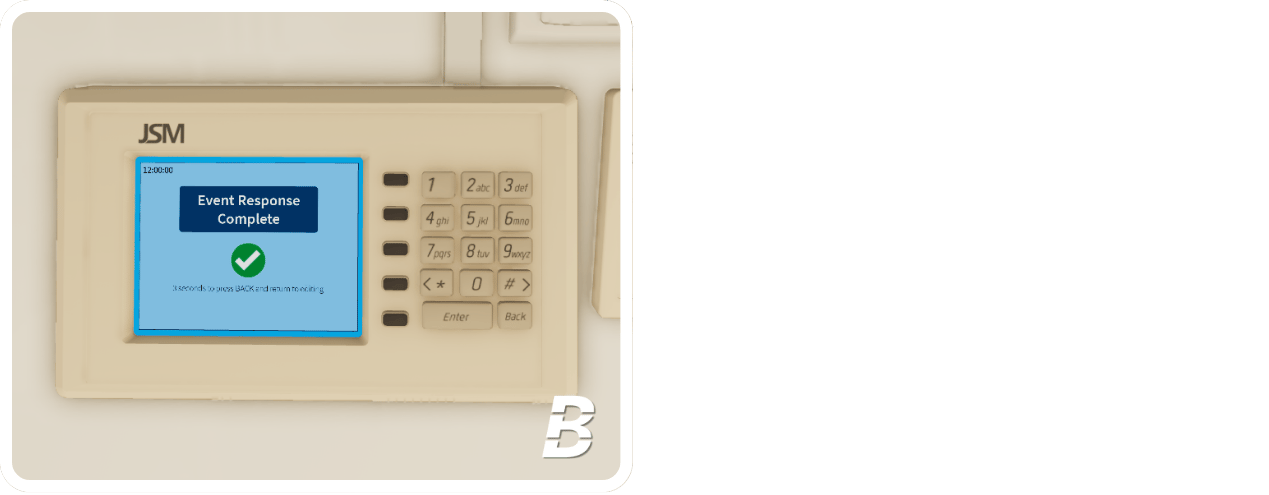
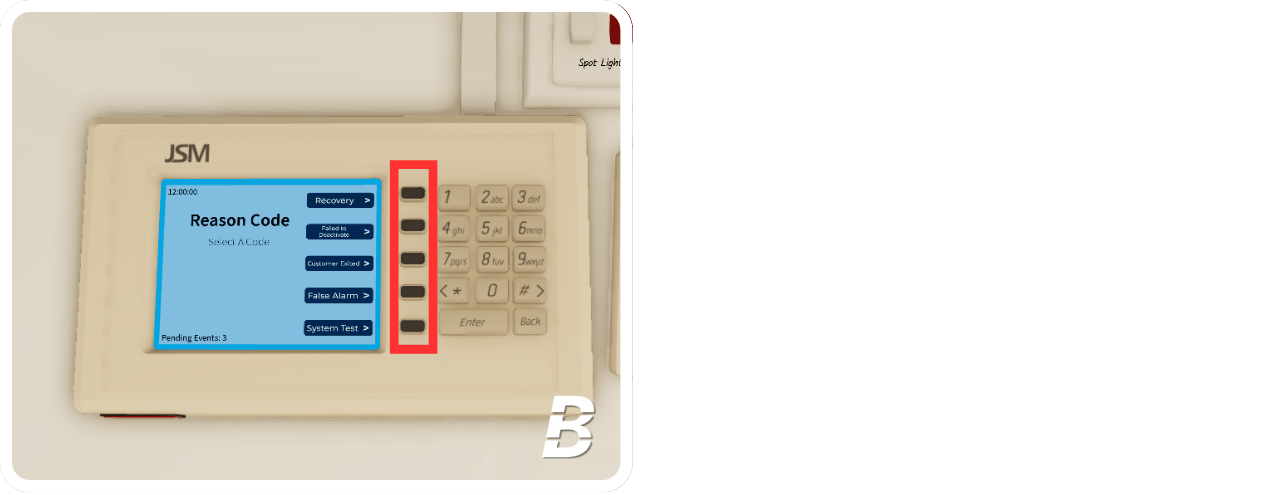 The screen will display **"Event Response Complete"** after selecting the Reason Code. You have responded to the monitoring system.